 Brake
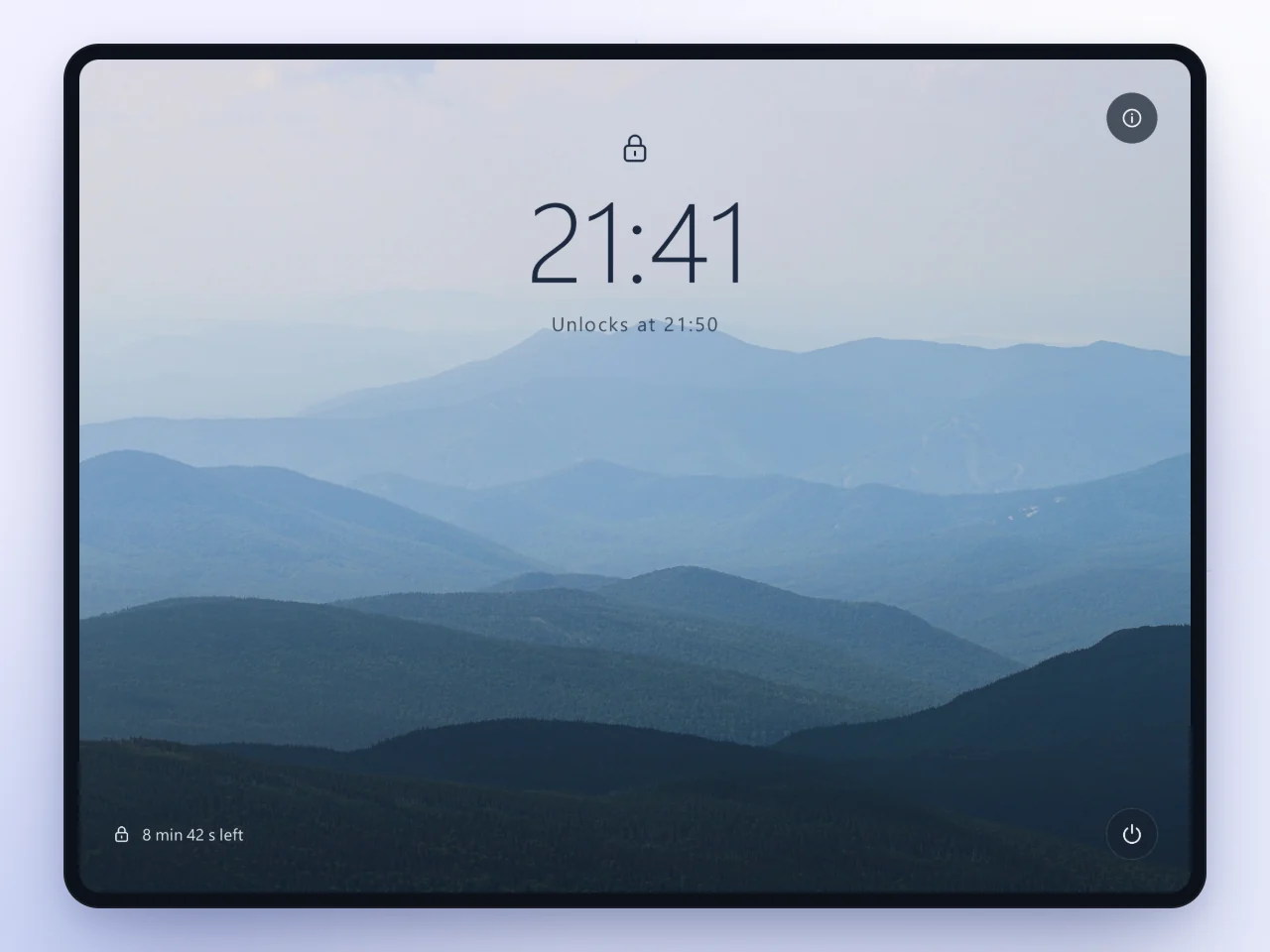
Your PC stays locked until the timer ends
Pick how long, press lock, and your whole PC stays locked until time is up. Schedule it for every night or lock it right now.
Get Lock me out, free forever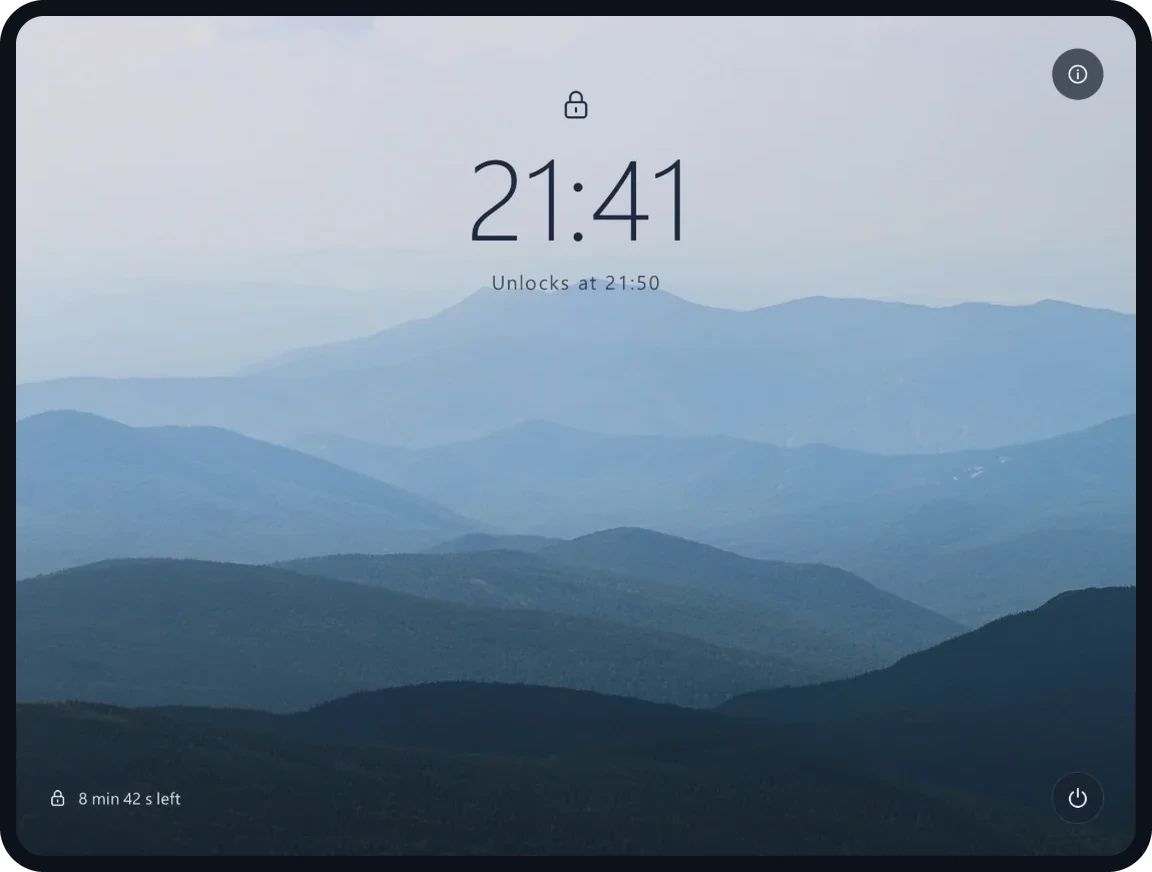
Decide when to step away
Make room for sleep, study, or focused work. Set a stopping time for gaming or late-night scrolling.
-
Step 1
Pick how long
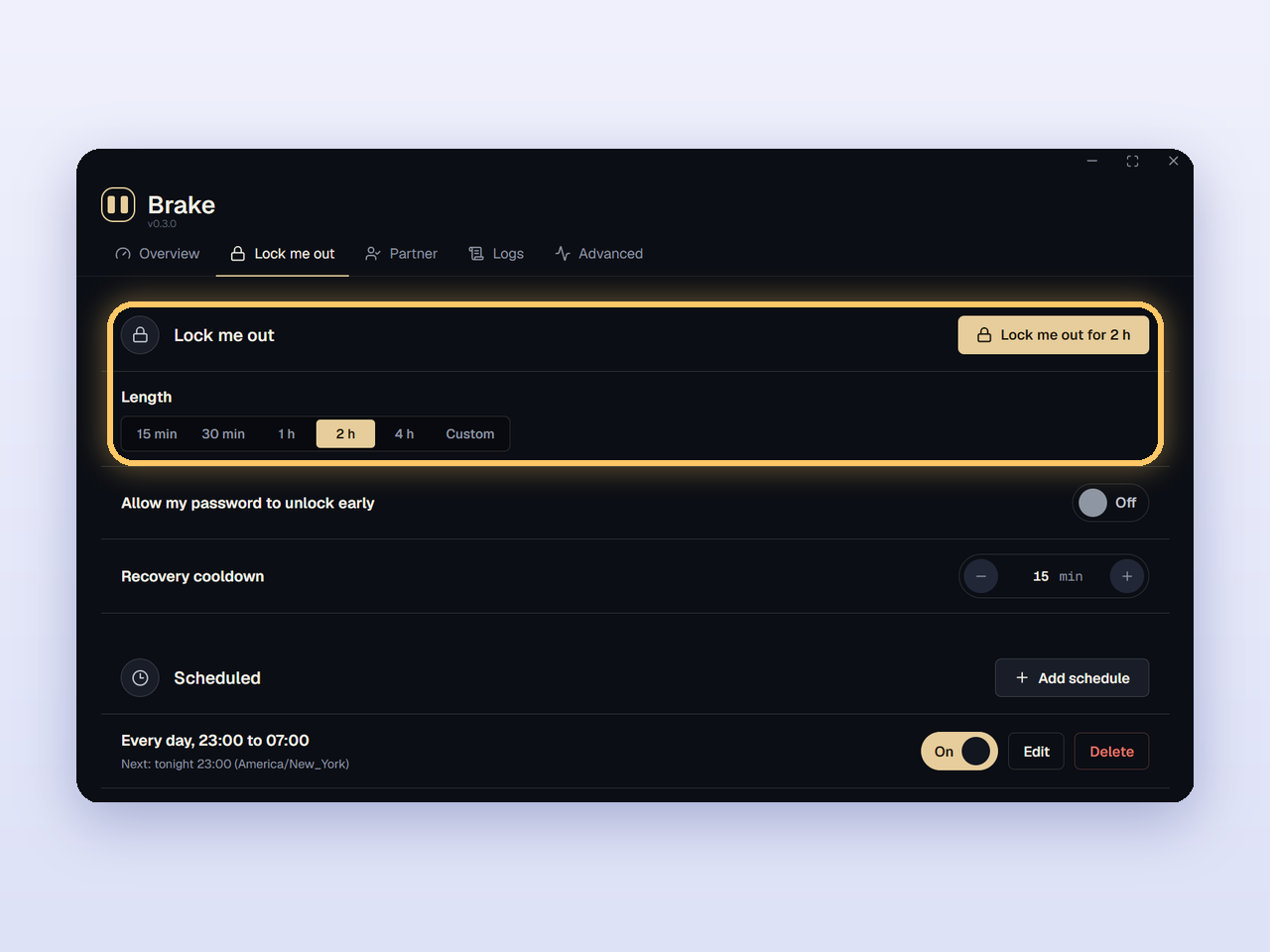
Choose a preset starting at 15 minutes, or set a custom length from 1 minute up to 12 hours. Then press Lock me out and confirm to lock your PC.
-
Step 2
Or put it on a schedule
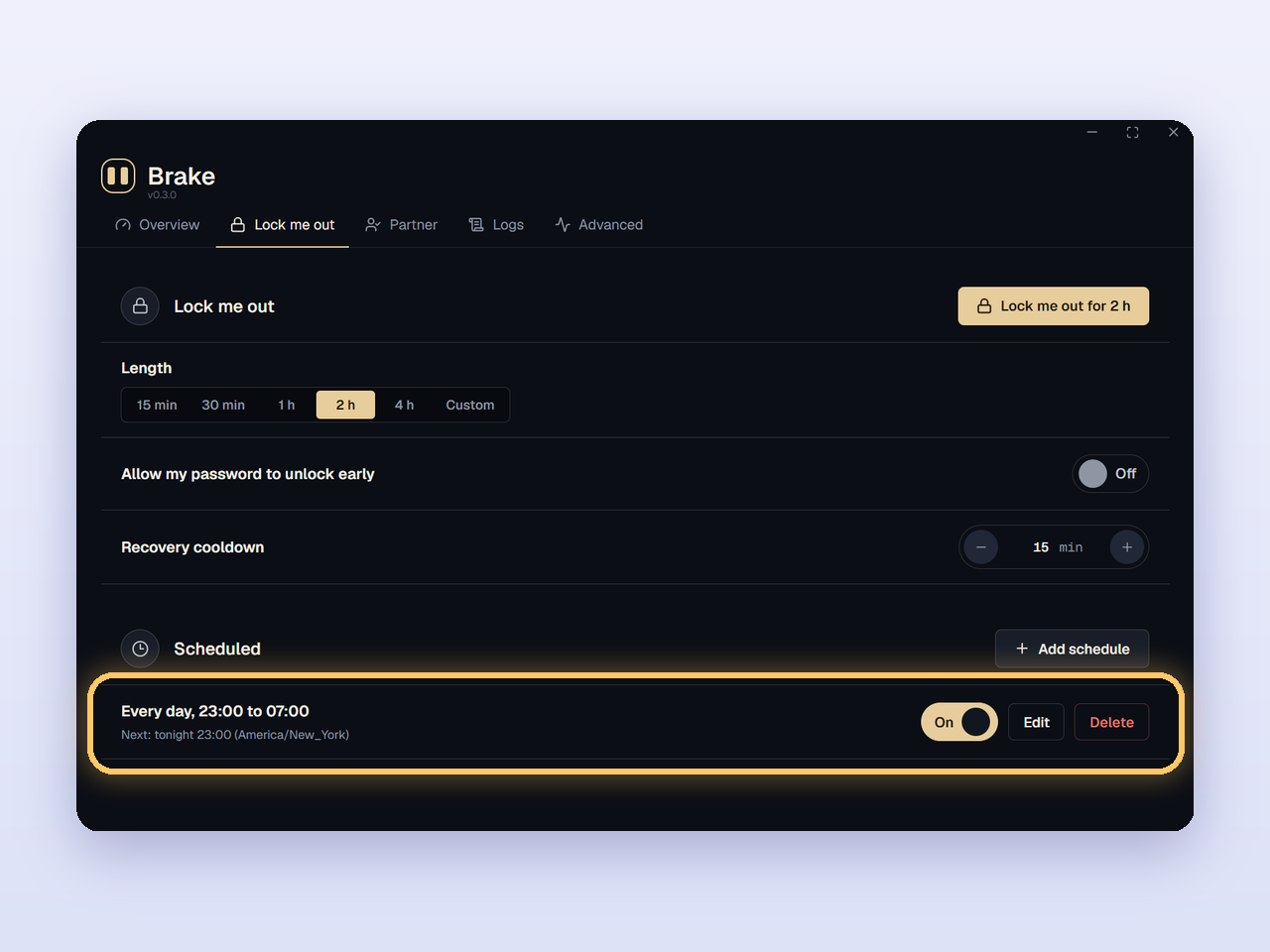
Pick the days and a time window, such as every night from 23:00 to 07:00. Overnight windows end the next morning.
-
Step 3
Your PC stays locked
Every monitor stays locked until the timer ends. Then you can pick up where you left off.


Got questions?
Can I end a lock early?
Your password can end a lock you start yourself only if you turned on "Allow my password to unlock early" before locking. Otherwise, your recovery code ends it after the cooldown you chose. Scheduled locks cannot be ended with your password, but your recovery code works after the same cooldown.
How long can a lock last?
Lock me out can last up to 12 hours. Each schedule can last up to 20 hours, and you can have up to 5 schedules. Your schedules must leave at least 4 hours unlocked in every 24 hours.
Is Lock me out really free?
Yes. Lock me out is free forever on every plan, with no key and no sign-up, and it keeps working after the 14-day trial ends. That includes locks from 1 minute to 12 hours, password or recovery options, and scheduled lockouts with up to 5 weekly windows of up to 20 hours each. Using Lock me out does not start the trial. The full Brake app is included free for 14 days after you first turn on protection. See pricing for the plans.
Does it need the internet?
No. The locks themselves run on your PC.
Make time away from your PC
Choose when to stop, and let Brake hold that time for you. Lock me out is free forever.